Dream Afar + Notion: The Ultimate Productivity Workflow for 2026
Learn how to combine Dream Afar's beautiful new tab with Notion's powerful workspace. Create a seamless productivity system that boosts focus, tracks tasks, and inspires daily action.
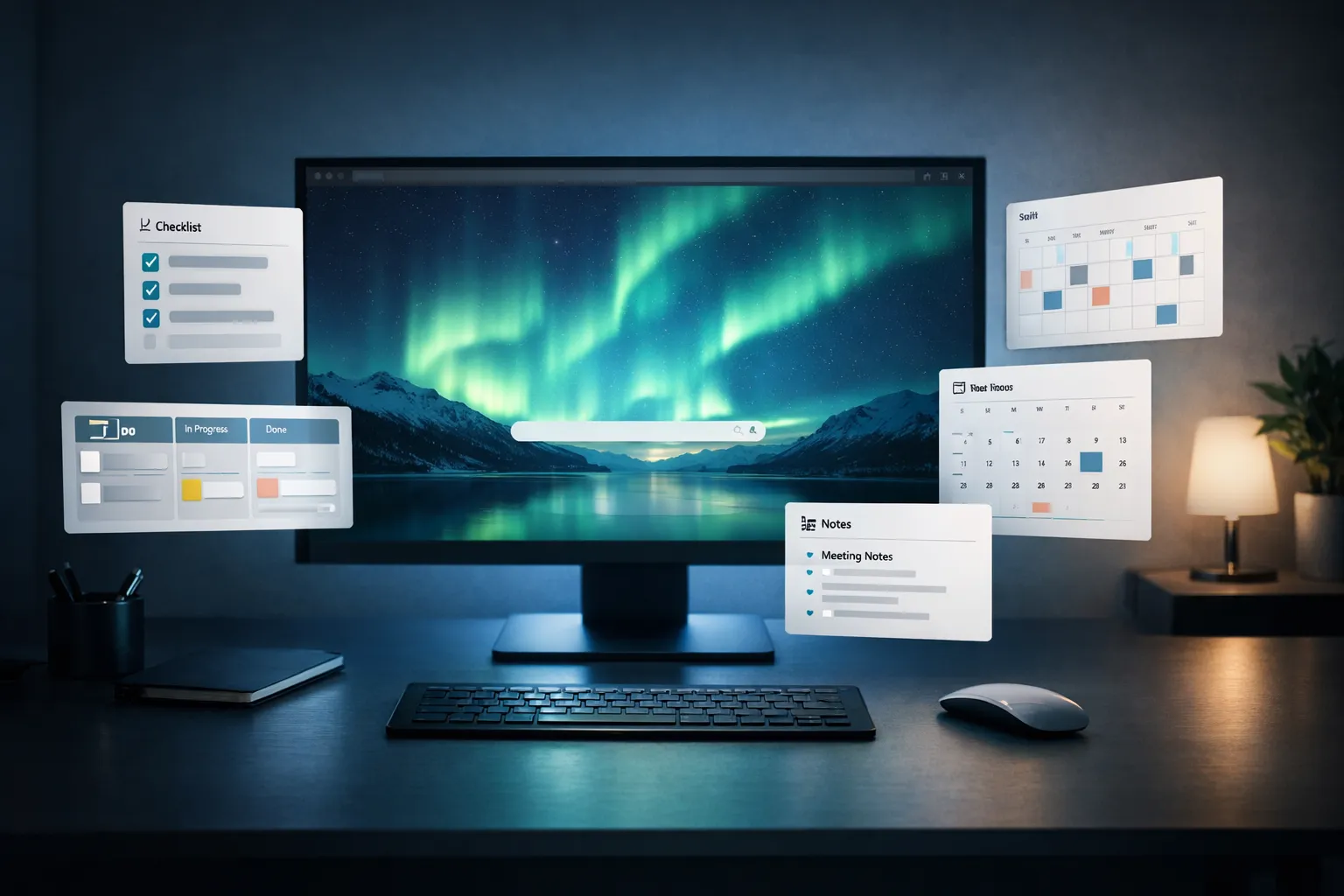
Notion has become the go-to workspace for millions of knowledge workers. Dream Afar transforms every new tab into a moment of calm focus. Together, they create a productivity system that's both powerful and beautiful.
This guide shows you how to build the perfect Dream Afar + Notion workflow for maximum productivity in 2026.
Why Dream Afar and Notion Work Perfectly Together
Complementary Strengths
Notion excels at:
- Complex project management
- Database-driven workflows
- Team collaboration
- Long-form documentation
- Connected knowledge bases
Dream Afar excels at:
- Daily focus and intention setting
- Quick task capture
- Visual motivation through wallpapers
- Distraction blocking
- Moment-to-moment awareness
The Workflow Gap They Fill
Most productivity systems have a gap: the space between opening your browser and getting to work. Dream Afar fills this gap perfectly by:
- Starting with intention — See your focus for the day
- Capturing quick thoughts — Jot notes without context switching
- Blocking distractions — Stay focused before reaching Notion
- Creating calm — Beautiful wallpapers reduce anxiety
Setting Up the Integration
Step 1: Install and Configure Dream Afar
- Install Dream Afar from Chrome Web Store
- Open a new tab to access settings
- Configure widgets for your workflow
Recommended widget setup for Notion users:
| Widget | Purpose |
|---|---|
| Clock | Time awareness |
| Todo List | Daily priorities from Notion |
| Quick Notes | Capture ideas for Notion |
| Weather | Plan your day |
| Quote | Daily motivation |
Step 2: Mirror Your Notion Daily Tasks
Dream Afar's todo widget is perfect for your daily priorities:
Morning routine:
- Open Notion → View today's tasks
- Identify your top 3-5 priorities
- Add them to Dream Afar's todo widget
- Close Notion — work from Dream Afar throughout the day
Why this works:
- Reduces context switching
- Creates clear daily focus
- Prevents Notion rabbit holes
- Visible priorities on every new tab
Step 3: Set Up Quick Capture
Use Dream Afar's notes widget as an inbox:
- During the day, jot quick thoughts in Dream Afar
- At day's end, transfer to Notion
- Keep Dream Afar clean for tomorrow
What to capture:
- Ideas that pop up
- Quick reminders
- Meeting notes snippets
- Questions to research later
The Complete Daily Workflow
Morning: Set Your Intention (5 minutes)
1. Open new tab → Dream Afar appears
2. Appreciate the wallpaper (moment of calm)
3. Review yesterday's incomplete todos
4. Open Notion briefly
5. Copy today's priorities to Dream Afar
6. Close Notion
7. Start working
During Work: Stay Focused
Every new tab shows:
- Your top priorities
- Current time
- Beautiful, calming wallpaper
- Quick access to notes
When ideas strike:
- Jot in Dream Afar notes (5 seconds)
- Continue working
- Don't open Notion mid-task
When tempted to browse:
- Dream Afar's focus mode blocks distractions
- See your priorities — remember your intention
- Use Pomodoro timer for structured focus
Evening: Sync and Reflect (10 minutes)
1. Review Dream Afar todos → What's complete?
2. Open Notion
3. Update task statuses
4. Transfer notes to appropriate Notion pages
5. Plan tomorrow's priorities
6. Clear Dream Afar for fresh start
Advanced Integration Strategies
Strategy 1: Theme-Based Wallpaper Selection
Match Dream Afar wallpapers to your work type:
| Work Type | Wallpaper Theme | Effect |
|---|---|---|
| Deep work | Mountains, forests | Calm focus |
| Creative work | Abstract, colorful | Stimulation |
| Planning | Cityscapes | Perspective |
| Rest days | Beaches, clouds | Relaxation |
Strategy 2: Separate Quick Tasks from Projects
Dream Afar todos for:
- Today's actions only
- Simple, completable items
- Things to do right now
Notion for:
- Project breakdowns
- Recurring tasks
- Team coordination
- Long-term planning
Strategy 3: The 3-3-3 Method
Use Dream Afar to display:
- 3 deep work tasks (most important)
- 3 quick tasks (easy wins)
- 3 personal items (life admin)
Only 9 items visible at a time — prevents overwhelm.
Productivity Techniques That Combine Both Tools
Technique 1: Morning Pages to Notion Database
- Use Dream Afar notes for morning brain dump
- Write freely for 5 minutes
- Transfer insights to Notion's journal database
- Clear notes, start fresh
Technique 2: Project Focus Sprints
When working on a big Notion project:
- Set Dream Afar todo: "Project X: [specific task]"
- Enable focus mode
- Work in Pomodoro sessions
- Update Notion only during breaks
Technique 3: Weekly Review Pipeline
Every Sunday:
- Open Dream Afar → Reflect on the week
- What's still in todos? Move to Notion backlog
- What's in notes? Process to Notion
- Set next week's top 3 priorities
- Choose inspiring wallpaper collection for the week
Common Mistakes and How to Avoid Them
Mistake 1: Duplicating Everything
Problem: Keeping all tasks in both Dream Afar and Notion
Solution:
- Notion = source of truth for all tasks
- Dream Afar = today's extracted priorities only
Mistake 2: Opening Notion for Every Thought
Problem: Using Notion as quick capture (it's too powerful)
Solution:
- Capture in Dream Afar first
- Batch process to Notion once or twice daily
Mistake 3: Ignoring the Visual Environment
Problem: Rushing past Dream Afar to get to Notion
Solution:
- Take 2-3 seconds to appreciate the wallpaper
- This micro-pause improves focus transition
Mistake 4: Over-Complicating Dream Afar
Problem: Too many widgets cluttering the new tab
Solution:
- Keep it minimal: clock, 5 todos, notes
- Dream Afar is for focus, not features
Specific Workflows by Use Case
For Students
Notion setup:
- Class notes database
- Assignment tracker
- Reading list
Dream Afar setup:
- Today's study tasks
- Pomodoro timer for sessions
- Block social media during study
Workflow:
- Morning: Check Notion for due assignments
- Add study tasks to Dream Afar
- Use Pomodoro timer for focus
- Transfer notes to Notion databases
For Remote Workers
Notion setup:
- Project management
- Meeting notes
- Team wikis
Dream Afar setup:
- Today's meetings + 3 priorities
- Quick notes for meeting thoughts
- Focus mode during deep work
Workflow:
- Start day in Dream Afar (not email/Slack)
- Set clear priorities
- Block distractions until first milestone
- Sync with Notion before meetings
For Freelancers
Notion setup:
- Client projects
- Income tracking
- Content calendar
Dream Afar setup:
- Today's client deliverables
- Invoice reminders
- Quick capture for ideas
Workflow:
- Morning review of client deadlines
- Add specific deliverables to Dream Afar
- Focus mode during client work
- End of day: Update Notion timers and status
For Managers
Notion setup:
- Team dashboards
- 1:1 notes
- Strategic planning
Dream Afar setup:
- Today's decisions to make
- People to follow up with
- Meeting prep reminders
Workflow:
- Morning: Review team Notion dashboard
- Extract your actions to Dream Afar
- Quick notes during meetings
- Batch process notes to Notion
Optimizing for Different Work Styles
For Visual Thinkers
- Use Google Earth View wallpapers
- Choose varied, inspiring imagery
- Let visuals spark creativity
- Transfer visual ideas to Notion galleries
For Minimalists
- Single wallpaper (solid color or simple)
- Maximum 3 todos visible
- Hide clock and weather
- Use Notion for everything except focus
For Data Lovers
- Track Pomodoro counts in Notion database
- Log daily priorities completed
- Weekly productivity reviews
- Adjust system based on data
Making It Sustainable
Week 1: Start Simple
- Install Dream Afar
- Add only clock and 3 todos
- Mirror just one Notion list
Week 2: Add Capture
- Enable notes widget
- Practice quick capture
- Daily sync to Notion
Week 3: Add Focus
- Configure focus mode
- Block top 3 distracting sites
- Use Pomodoro timer
Week 4: Refine
- Adjust wallpaper preferences
- Fine-tune widget layout
- Establish morning/evening rituals
Conclusion
Dream Afar and Notion together create a productivity system that combines beauty with power. Dream Afar handles the daily focus — what you see when you open your browser, what you capture in the moment, what you commit to today. Notion handles the complexity — projects, knowledge, collaboration, long-term planning.
The key is keeping them complementary:
- Dream Afar = Today's focus, quick capture, visual calm
- Notion = Everything else
This separation creates mental clarity. You're never overwhelmed by Notion's power because Dream Afar shows you only what matters now.
Related Articles
- The Complete Guide to Browser-Based Productivity
- The Pomodoro Technique for Browser Users
- How to Block Distracting Websites in Chrome
- Digital Minimalism in Your Browser
Ready to build your Dream Afar + Notion workflow? Install Dream Afar free →
Try Dream Afar Today
Transform your new tab into a beautiful, productive dashboard with stunning wallpapers and customizable widgets.