Chrome New Tab Shortcuts & Productivity Tips: Master Your Browser
Master Chrome new tab shortcuts and productivity tips. Learn keyboard shortcuts, time-saving techniques, and expert strategies to boost your browsing efficiency.
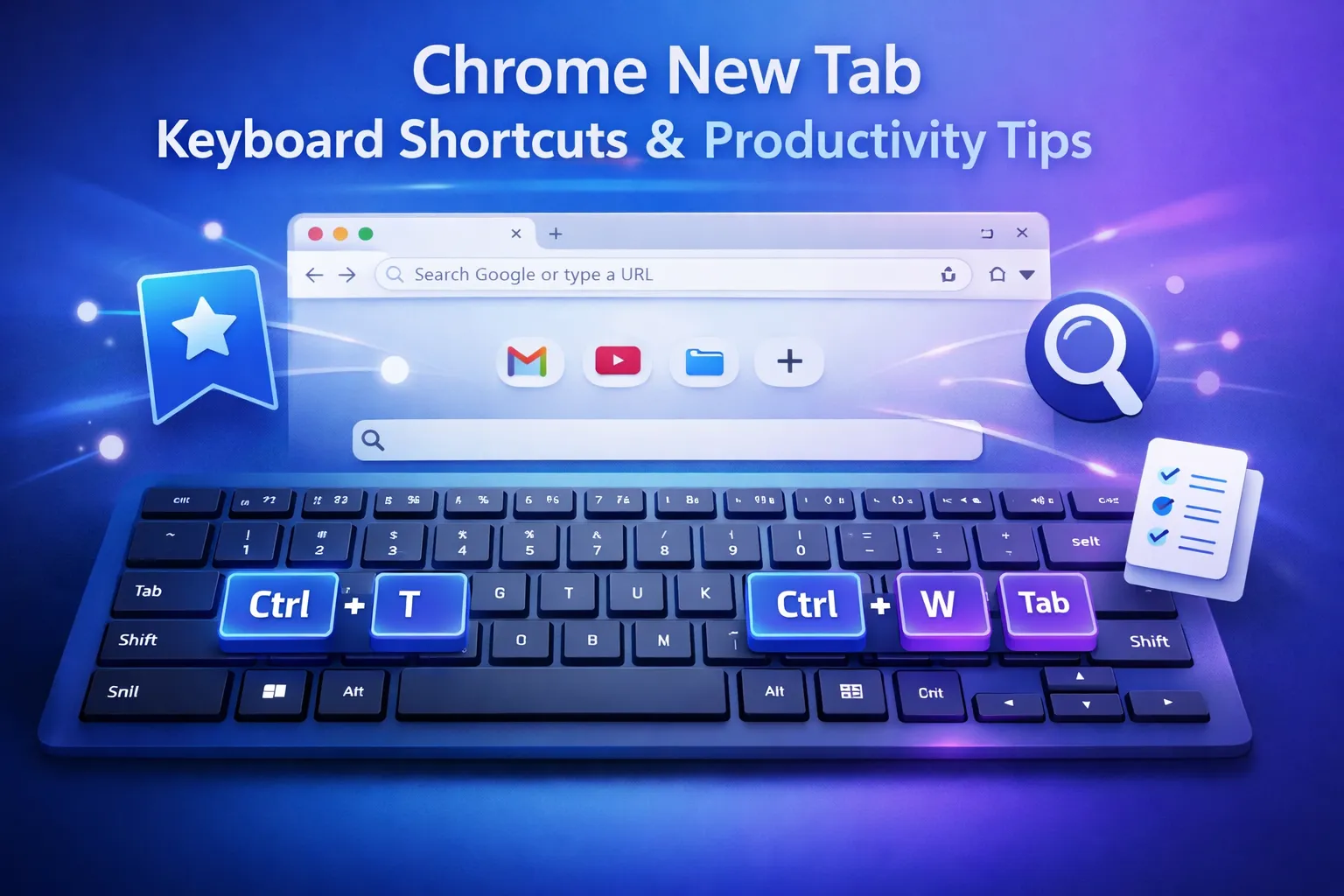
Your new tab page is more than just a landing page — it's a productivity hub waiting to be optimized. With the right shortcuts and techniques, you can shave hours off your weekly browsing time.
This guide covers essential keyboard shortcuts, productivity systems, and expert tips for Chrome power users.
Essential Keyboard Shortcuts
Tab Management
| Shortcut (Windows/Linux) | Shortcut (Mac) | Action |
|---|---|---|
Ctrl + T | Cmd + T | Open new tab |
Ctrl + W | Cmd + W | Close current tab |
Ctrl + Shift + T | Cmd + Shift + T | Reopen last closed tab |
Ctrl + Tab | Ctrl + Tab | Next tab |
Ctrl + Shift + Tab | Ctrl + Shift + Tab | Previous tab |
Ctrl + 1-8 | Cmd + 1-8 | Jump to tab 1-8 |
Ctrl + 9 | Cmd + 9 | Jump to last tab |
Ctrl + N | Cmd + N | New window |
Ctrl + Shift + N | Cmd + Shift + N | New incognito window |
Navigation
| Shortcut (Windows/Linux) | Shortcut (Mac) | Action |
|---|---|---|
Ctrl + L | Cmd + L | Focus address bar |
Ctrl + K | Cmd + K | Search from address bar |
Alt + Home | Cmd + Shift + H | Open homepage |
Alt + Left | Cmd + [ | Go back |
Alt + Right | Cmd + ] | Go forward |
F5 or Ctrl + R | Cmd + R | Refresh page |
Ctrl + Shift + R | Cmd + Shift + R | Hard refresh (clear cache) |
Page Actions
| Shortcut (Windows/Linux) | Shortcut (Mac) | Action |
|---|---|---|
Ctrl + D | Cmd + D | Bookmark current page |
Ctrl + Shift + D | Cmd + Shift + D | Bookmark all open tabs |
Ctrl + F | Cmd + F | Find on page |
Ctrl + G | Cmd + G | Find next |
Ctrl + P | Cmd + P | Print page |
Ctrl + S | Cmd + S | Save page |
Window Management
| Shortcut (Windows/Linux) | Shortcut (Mac) | Action |
|---|---|---|
F11 | Cmd + Ctrl + F | Full screen |
Ctrl + Shift + B | Cmd + Shift + B | Toggle bookmarks bar |
Ctrl + H | Cmd + Y | History |
Ctrl + J | Cmd + Shift + J | Downloads |
New Tab Productivity Systems
1. The Morning Dashboard Ritual
Start each day with a structured new tab routine:
5-Minute Morning Setup
-
Open new tab (30 seconds)
- Review yesterday's incomplete tasks
- Check weather widget
-
Set daily intention (1 minute)
- Write one sentence in notes: "Today I will [specific goal]"
-
Add 3 priorities (2 minutes)
- List top 3 tasks in todo widget
- Make them specific and achievable
-
Start first timer (1 minute)
- Begin Pomodoro session
- Commit to 25 minutes of focused work
Why it works: Creates consistent start-of-day momentum and ensures priorities are visible throughout the day.
2. The 3-Task Rule
Overwhelm is the enemy of productivity. Limit yourself to exactly 3 tasks on your new tab at any time.
The Rules:
- Only add 3 tasks to your new tab todo
- Complete all 3 before adding more
- If something urgent comes up, swap out (don't add a 4th)
- End-of-day: Clear and set tomorrow's 3
Why it works:
- Short lists feel achievable
- Completion rate increases dramatically
- Forces prioritization
- Reduces decision fatigue
Implementation:
Morning Todo:
✓ 1. Finish project proposal
✓ 2. Email team update
✓ 3. Review analytics dashboard

Afternoon (after completing morning 3):
✓ 1. Prepare meeting slides
✓ 2. Return client call
□ 3. Update documentation
3. Time Boxing with Pomodoro
Use your new tab timer to implement structured focus sessions.
Standard Pomodoro:
- 25 minutes work
- 5 minutes break
- After 4 sessions: 15-30 minute break
Modified Pomodoro for Deep Work:
- 50 minutes work
- 10 minutes break
- Better for complex tasks requiring longer focus
Quick Session:
- 15 minutes work
- 3 minutes break
- Good for small tasks or low-energy times
How to implement:
- Select task from todo list
- Start timer
- Work until timer ends — no exceptions
- Take break, then restart
- Mark task complete when done
4. The Quick Capture System
Use your new tab notes as an "inbox" for random thoughts.
The System:
- Capture immediately — When a thought pops up, jot it in notes
- Don't process yet — Just capture, keep working
- Review daily — End of day, process captured items
- File or delete — Move to appropriate place or discard
Example captures:
Notes widget:
- Call dentist about appointment
- Research competitor pricing
- Birthday gift idea for Sarah
- That blog post about React hooks
- Grocery: milk, eggs, bread
Why it works:
- Gets thoughts out of your head
- Prevents context switching
- Nothing gets forgotten
- Maintains focus on current task
5. The Site Blocking Strategy
Use focus mode to eliminate distractions during work hours.
Tier 1: Always Block (major time sinks)
- Social media (Twitter, Facebook, Instagram)
- YouTube (during work)
- News sites
Tier 2: Work Hours Block (sometimes useful)
- Email (check at set times)
- Slack (batch communication)
- Shopping sites
- Entertainment sites
Tier 3: Scheduled Access (necessary but distracting)
- Allow for specific time windows
- Example: Email only 9am, 12pm, 5pm
Implementation:
- Enable Focus Mode in settings
- Add Tier 1 sites to permanent blocklist
- Schedule focused work sessions
- Allow Tier 3 during designated breaks
Power User Tips
Tip 1: Use Multiple Wallpaper Collections
Create mood-based collections:
| Collection | Use When | Images |
|---|---|---|
| Focus | Deep work | Minimal, calm |
| Creative | Brainstorming | Vibrant, inspiring |
| Relax | After hours | Beaches, sunsets |
| Motivate | Low energy | Mountains, achievements |
Switch collections manually or let them rotate based on time of day.
Tip 2: Keyboard-First Workflow
Minimize mouse usage for common actions:
New tab workflow without mouse:
Ctrl/Cmd + T— Open new tab- Start typing — Auto-focuses search (if enabled)
Tab— Navigate between widgetsEnter— Activate focused widget
Tip 3: Optimize Widget Layout
Position widgets based on usage frequency:
┌────────────────────────────────────────┐
│                                        │
│            MOST USED                   │
│         (Clock, Search)                │
│                                        │
│   SECONDARY           SECONDARY        │
│   (Weather)           (Todo)           │
│                                        │
│            OCCASIONAL                  │
│         (Notes, Links)                 │
│                                        │
└────────────────────────────────────────┘
Principles:
- Center = Most important
- Top = Glance information (time, weather)
- Middle = Action items (todo, timer)
- Bottom = Reference (notes, links)
Tip 4: Create a Shutdown Ritual
End each day with a structured close:
5-Minute Shutdown:
-
Review (1 minute)
- What did you accomplish?
- What's incomplete?
-
Capture (1 minute)
- Note anything still in your head
- Add to tomorrow's considerations
-
Plan (2 minutes)
- Set tomorrow's 3 tasks
- Check calendar for conflicts
- Prepare for first morning task
-
Close (1 minute)
- Clear completed todos
- Close all tabs
- Done — permission to disconnect
Why it works: Creates psychological closure, better sleep, and faster start tomorrow.
Tip 5: Use Search Engine Shortcuts
Many new tab search bars support shortcuts:
| Prefix | Searches |
|---|---|
g | |
d | DuckDuckGo |
y | YouTube |
w | Wikipedia |
gh | GitHub |
so | Stack Overflow |
Example: Type y react tutorial to search YouTube for React tutorials.
Check your extension settings for available shortcuts or create custom ones.
Tip 6: Weekly Review Ritual
Every Sunday, review your new tab setup:
15-Minute Weekly Review:
-
Clear old todos (3 minutes)
- Archive completed tasks
- Move incomplete to this week
- Delete irrelevant items
-
Review notes (3 minutes)
- Process quick captures
- File important information
- Delete processed notes
-
Plan the week (5 minutes)
- Identify major goals
- Block time for deep work
- Note important deadlines
-
Optimize setup (4 minutes)
- Is wallpaper still inspiring?
- Are all widgets useful?
- Any new distractions to block?
Advanced Techniques
Technique 1: Context-Based Tabs
Open different windows for different contexts:
Work Window:
- Focus mode enabled
- Todo list visible
- Productivity wallpaper
- Work shortcuts
Personal Window:
- Focus mode disabled
- Relaxed wallpaper
- Personal bookmarks
- Different search engine
Implementation: Use separate Chrome profiles or browser windows.
Technique 2: The Two-Tab Rule
Limit yourself to 2 open tabs at a time for focused work:
- Active tab — What you're working on
- Reference tab — Supporting information
Force yourself to close tabs before opening new ones. This prevents tab hoarding and improves focus.
Technique 3: Energy-Based Task Matching
Match tasks to energy levels using your todo list:
High Energy (morning for most):
- Complex, creative work
- Important decisions
- Learning new skills
Medium Energy (mid-day):
- Communication (email, calls)
- Routine tasks
- Collaboration
Low Energy (afternoon/evening):
- Administrative tasks
- Review and editing
- Planning tomorrow
Label tasks with energy level and tackle accordingly.
Common Mistakes to Avoid
Mistake 1: Too Many Widgets
Problem: Overwhelming visual clutter, slower load times Solution: Start with 2-3 widgets, add only as needed
Mistake 2: No Focus Mode
Problem: Easy access to distracting sites Solution: Block major time-wasters immediately
Mistake 3: Infinite Todo List
Problem: Long lists feel impossible, nothing gets done Solution: Limit to 3 tasks, complete before adding more
Mistake 4: Never Changing Wallpaper
Problem: Visual fatigue, reduced inspiration Solution: Rotate collections weekly or use daily refresh
Mistake 5: Ignoring Keyboard Shortcuts
Problem: Slow, mouse-dependent workflow Solution: Learn 5 shortcuts this week, add more gradually
Quick Reference Card
Save this for quick reference:
ESSENTIAL SHORTCUTS
-------------------
New tab:        Ctrl/Cmd + T
Close tab:      Ctrl/Cmd + W
Reopen tab:     Ctrl/Cmd + Shift + T
Address bar:    Ctrl/Cmd + L

DAILY SYSTEM
------------
Morning:  Set intention, add 3 tasks, start timer
During:   Quick capture thoughts, focus sessions
Evening:  Review, plan tomorrow, shutdown

WEEKLY SYSTEM
-------------
Sunday:   Clear old tasks, review notes, plan week
Check:    Is wallpaper fresh? Widgets useful?
Related Articles
- The Ultimate Guide to Chrome New Tab Customization
- Chrome New Tab Widgets Explained
- 10 Productivity Tips for Your Browser's New Tab Page
Ready to boost your productivity? Install Dream Afar free →
Try Dream Afar Today
Transform your new tab into a beautiful, productive dashboard with stunning wallpapers and customizable widgets.