The Ultimate Guide to Customizing Your Chrome New Tab Page (2025)
Everything you need to know about Chrome new tab customization. From backgrounds and widgets to privacy settings and productivity shortcuts — the complete guide.
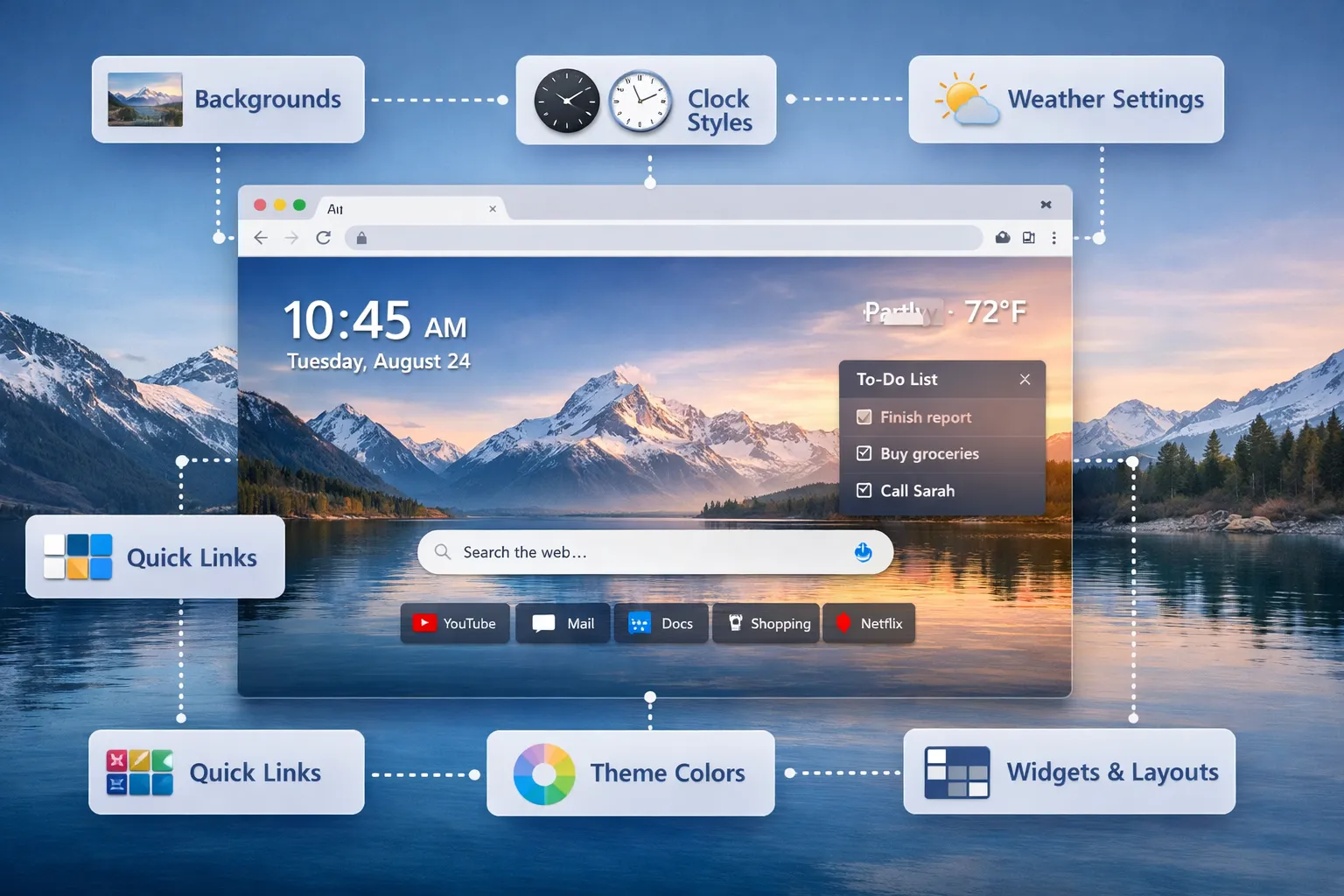
Your Chrome new tab page is the most-viewed page in your browser. You see it every time you open a new tab — potentially hundreds of times per day. Yet most people never customize it beyond Chrome's basic options.
This comprehensive guide covers everything you need to know about Chrome new tab customization, from simple background changes to advanced productivity setups.
Table of Contents
- Why Customize Your New Tab?
- Changing Your New Tab Background
- Best New Tab Extensions
- Understanding New Tab Widgets
- Productivity Shortcuts & Tips
- Privacy Settings & Data Protection
- Troubleshooting Common Issues
- Choosing the Right Setup for You
Why Customize Your New Tab Page?
Before diving into the how, let's understand the why:
The Numbers
- Average user opens 30-50 new tabs per day
- Power users can exceed 100+ tabs daily
- Each new tab view lasts 2-5 seconds
- That's 10-25 minutes of new tab viewing time daily
The Benefits
Productivity
- Quick access to daily tasks and priorities
- Timer widgets for focused work sessions
- Notes for capturing ideas instantly
Inspiration
- Beautiful wallpapers from around the world
- Motivational quotes and reminders
- Fresh imagery to spark creativity
Privacy
- Control over what data is collected
- Local-only storage options
- No tracking or analytics
Focus
- Block distracting websites
- Minimize visual clutter
- Create intentional browsing habits
How to Change Your Chrome New Tab Background
The most popular customization is changing your new tab background. Here's how:
Method 1: Chrome's Built-in Options
Chrome offers basic background customization without extensions:
- Open a new tab
- Click "Customize Chrome" (bottom-right)
- Select "Background"
- Choose from:
- Chrome's wallpaper collections
- Solid colors
- Upload your own image
Limitations: Limited selection, no widgets, no productivity features.
Method 2: Using a New Tab Extension
Extensions like Dream Afar offer far more options:
Unsplash Integration
- Millions of high-quality photos
- Curated collections (nature, architecture, abstract)
- Daily or per-tab refresh
Google Earth View
- Stunning satellite imagery
- Unique perspectives
- Geographic exploration
Custom Uploads
- Use your own photos
- Create photo slideshows
- Perfect for personal touches
Pro Tip: Choose wallpapers that match your work mode — calm images for focus time, vibrant ones for creative work.
→ Deep dive: How to Change Chrome New Tab Background
Best Chrome New Tab Extensions (2025)
Not all new tab extensions are created equal. Here's what to look for:
Key Features to Consider
| Feature | Why It Matters |
|---|---|
| Privacy | How is your data stored and used? |
| Free Features | What's included without paying? |
| Wallpapers | Quality and variety of backgrounds |
| Widgets | Productivity tools available |
| Performance | Does it slow down your browser? |
Top Recommendations
Dream Afar — Best Free Option
- 100% free, no premium tier
- Privacy-first (local storage only)
- Beautiful wallpapers + full widget suite
- Focus mode with site blocking
Momentum — Best for Motivation
- Daily quotes and greetings
- Clean, minimal design
- Premium features require $5/month
Tabliss — Best Open Source
- Fully open source
- Customizable widgets
- Lightweight and fast
Infinity New Tab — Best for Power Users
- Extensive customization
- App/website shortcuts
- Grid-based layout
→ Full comparison: Best Free New Tab Extensions for Chrome 2025
Understanding New Tab Widgets
Widgets transform your new tab from a static page into a dynamic productivity dashboard.
Essential Widgets
Time & Date
- 12 or 24-hour format
- Multiple timezone support
- Customizable appearance
Weather
- Current conditions at a glance
- Helps plan your day
- Location-based or manual
Todo List
- Track daily priorities
- Quick task capture
- Persistent storage
Notes
- Jot down ideas instantly
- Set daily intentions
- Quick reference info
Timer/Pomodoro
- Focus sessions
- Break reminders
- Productivity tracking
Search Bar
- Quick web searches
- Multiple engine support
- Keyboard shortcuts
Widget Best Practices
- Less is more — Start with 2-3 widgets, add more as needed
- Position matters — Put most-used widgets in easy-to-see locations
- Customize appearance — Match widget opacity to your wallpaper
- Use keyboard shortcuts — Many widgets support quick access
→ Learn more: Chrome New Tab Widgets Explained
Chrome New Tab Shortcuts & Productivity Tips
Master these shortcuts and tips to maximize your new tab productivity:
Keyboard Shortcuts
| Shortcut | Action |
|---|---|
Ctrl/Cmd + T | Open new tab |
Ctrl/Cmd + W | Close current tab |
Ctrl/Cmd + Shift + T | Reopen closed tab |
Ctrl/Cmd + L | Focus address bar |
Ctrl/Cmd + 1-8 | Switch to tab 1-8 |
Ctrl/Cmd + 9 | Switch to last tab |
Productivity Systems
The 3-Task Rule Only add 3 tasks to your new tab todo list. Complete all 3 before adding more. This prevents overwhelm and increases completion rates.
Daily Intention Setting Each morning, write one sentence describing your main goal. Seeing it every new tab keeps you focused.
Time Blocking with Pomodoro
- 25 minutes focused work
- 5 minutes break
- Repeat 4x, then take 15-30 min break
Quick Capture Use the notes widget as an inbox — capture thoughts immediately, process later.
→ All tips: Chrome New Tab Shortcuts & Productivity Tips
New Tab Privacy Settings
Your new tab extension can see every tab you open. Understanding privacy settings is crucial.
Privacy Considerations
Data Storage
- Local-only — Data stays on your device (most private)
- Cloud sync — Data stored on company servers
- Account required — Usually means cloud storage
Permissions
- Read browsing history — Required for some features, but be cautious
- Access all websites — Needed for site blocking, but gives broad access
- Storage — Local storage is safe; cloud storage varies
Tracking & Analytics
- Does the extension track your usage?
- Is data sold to advertisers?
- What's the privacy policy?
Privacy-First Extensions
Dream Afar
- 100% local storage
- No account required
- No tracking or analytics
- Open about data practices
Tabliss
- Open source (auditable code)
- No cloud features
- Minimal permissions
Bonjourr
- Open source
- Local storage only
- No accounts
Red Flags to Watch For
- Vague privacy policies
- Excessive permission requests
- Required account creation
- "Free" with unclear business model
→ Full guide: Chrome New Tab Privacy Settings
Troubleshooting Common Issues
Extension Not Showing on New Tab
- Check
chrome://extensions— is it enabled? - Disable other new tab extensions (conflicts)
- Clear Chrome cache and restart
- Reinstall the extension
Wallpapers Not Loading
- Check internet connection
- Try a different wallpaper source
- Clear extension cache in settings
- Disable VPN temporarily (some block image CDNs)
Widgets Not Saving
- Don't use incognito mode (no local storage)
- Check Chrome storage permissions
- Clear extension data and reconfigure
- Report bug to extension developer
Slow Performance
- Disable unused widgets
- Reduce wallpaper quality/resolution
- Check for extension conflicts
- Update Chrome to latest version
Settings Reset After Browser Restart
- Check Chrome sync settings
- Disable "clear data on exit" browser settings
- Make sure extension has storage permissions
- Export settings as backup
Choosing the Right Setup for You
Different users have different needs. Here's our recommendations:
For Minimalists
Goal: Clean, fast, distraction-free
Setup:
- Extension: Bonjourr or Tabliss
- Widgets: Clock only
- Wallpaper: Solid color or subtle gradient
- No shortcuts or todos visible
For Productivity Enthusiasts
Goal: Maximize focus and task completion
Setup:
- Extension: Dream Afar
- Widgets: Todo, Timer, Notes, Weather
- Wallpaper: Calm nature scenes
- Focus mode: Block social media
For Visual Inspiration
Goal: Beautiful imagery to spark creativity
Setup:
- Extension: Dream Afar
- Widgets: Minimal (clock, search)
- Wallpaper: Unsplash collections, rotate daily
- Full-screen mode enabled
For Privacy-Conscious Users
Goal: Maximum privacy, minimum data sharing
Setup:
- Extension: Dream Afar or Tabliss
- Account: None required
- Storage: Local only
- Permissions: Minimal
For Power Users
Goal: Maximum functionality and shortcuts
Setup:
- Extension: Infinity New Tab
- Widgets: All available
- Shortcuts: Frequently used sites
- Custom layouts
Quick Start Guide
Ready to customize? Here's the fastest path:
5-Minute Setup
- Install Dream Afar from the Chrome Web Store
- Choose a wallpaper source (Unsplash recommended)
- Enable 2-3 widgets (Clock, Weather, Todo)
- Add 3 tasks for today
- Start browsing — your new tab is ready!
Advanced Setup (15-20 minutes)
- Complete 5-minute setup
- Configure Focus Mode with blocked sites
- Set up Pomodoro timer preferences
- Customize widget positions and appearance
- Create wallpaper collection rotation
- Write your daily intention
Conclusion
Customizing your Chrome new tab page is one of the highest-impact, lowest-effort improvements you can make to your browsing experience. Whether you choose Chrome's built-in options or a full-featured extension like Dream Afar, the key is creating a space that supports your goals.
Start simple — a beautiful wallpaper and one productivity widget — and build from there. Your perfect new tab is waiting.
Related Articles
- How to Change Chrome New Tab Background
- Best Free New Tab Extensions for Chrome 2025
- Chrome New Tab Widgets Explained
- Chrome New Tab Shortcuts & Productivity Tips
- Chrome New Tab Privacy Settings
Ready to transform your new tab? Install Dream Afar free →
Try Dream Afar Today
Transform your new tab into a beautiful, productive dashboard with stunning wallpapers and customizable widgets.