Chrome New Tab Widgets Explained: Complete Guide to Productivity Tools
Understand every new tab widget available — clocks, weather, todos, timers, notes, and more. Learn how to configure and use widgets for maximum productivity.
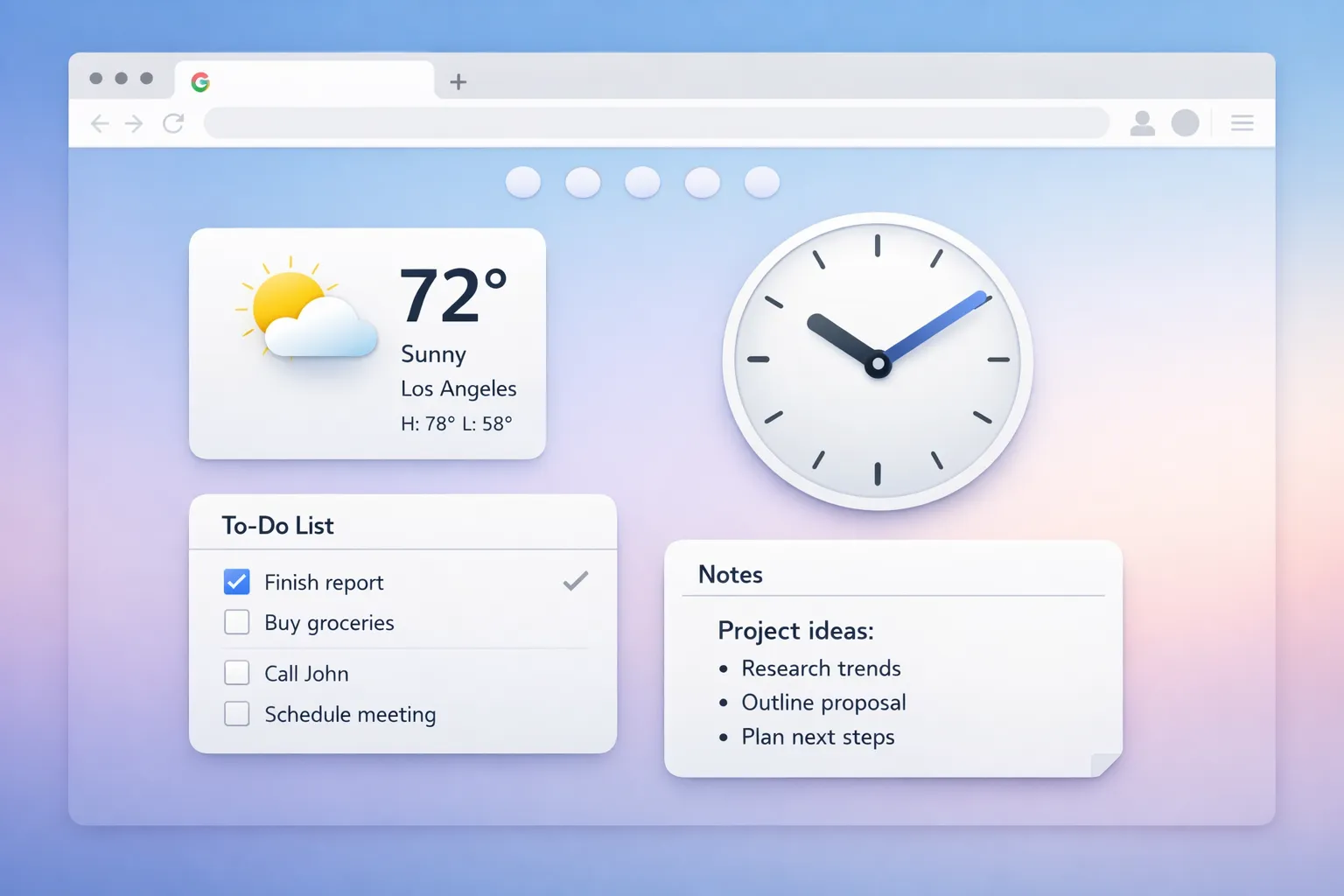
Widgets transform your Chrome new tab from a static page into a dynamic productivity dashboard. Instead of just seeing a wallpaper, you get useful tools at your fingertips — time, weather, tasks, notes, and more.
This guide explains every common widget type, how to use them effectively, and which ones actually boost productivity.
What Are New Tab Widgets?
Widgets are small, interactive components that display on your new tab page. Unlike full applications, they're designed for:
- Quick glances — Get information in seconds
- Minimal interaction — Simple clicks and inputs
- Persistent display — Always visible when you open a tab
- Customizable — Show only what you need
Chrome's Default vs. Extensions
Chrome's default new tab has no true widgets — just shortcuts and a search bar.
New tab extensions like Dream Afar add real widgets:
- Time and date displays
- Weather forecasts
- Todo lists
- Notes
- Timers
- And more
Essential Widgets Explained
1. Time & Date Widget
The most fundamental widget — displays current time and date.
Features typically available:
| Feature | Description |
|---|---|
| 12/24-hour format | Choose your preference |
| Seconds display | Show or hide seconds |
| Date format | MM/DD, DD/MM, or custom |
| Timezone | Show different timezone |
| Font customization | Size, style, color |
Best practices:
- Use 24-hour format if you work across timezones
- Hide seconds to reduce visual noise
- Position prominently — it's your most-used widget
Productivity tip: A large, visible clock creates time awareness and helps prevent losing track of time during deep work.
2. Weather Widget
Shows current weather conditions at a glance.
Common features:
- Current temperature — Celsius or Fahrenheit
- Conditions — Sunny, cloudy, rainy, etc.
- Location — Automatic (GPS) or manual
- Forecast — Today's high/low
- Humidity/Wind — Additional details
Why it matters for productivity:
Planning your day is easier when you know the weather:
- Dress appropriately (save decision time)
- Schedule outdoor activities
- Anticipate mood impacts (weather affects energy levels)
Configuration tips:
- Use manual location for privacy
- Enable multiple locations for travel
- Keep display minimal (temperature + icon is enough)
3. Todo List Widget
Track tasks directly on your new tab page.
Key features:
- Add tasks — Quick input field
- Check off items — Mark as complete
- Reorder — Drag to prioritize
- Persistent storage — Survives browser restarts
- Categories/tags — Organize by project
The 3-Task Rule
Research shows limiting visible tasks improves completion rates:
- Only add your top 3 priorities to the widget
- Complete all 3 before adding more
- Move finished tasks to a separate "completed" view
Why widget todos beat full apps:
- Constant visibility — See tasks every new tab
- Low friction — No app to open
- Quick capture — Add tasks in seconds
- Reinforcement — Regular reminders of priorities
Best practices:
- Write actionable tasks ("Email John about report" not "Email")
- Include deadlines in task text if needed
- Review and update each morning
4. Notes Widget
Quick capture for thoughts, ideas, and reminders.
Use cases:
| Use Case | Example |
|---|---|
| Daily intention | "Today I will finish the proposal" |
| Quick capture | Ideas that pop up during work |
| Reference info | Phone numbers, codes, links |
| Meeting notes | Quick jot during calls |
| Affirmations | Personal motivation |
Daily intention setting:
One powerful technique: each morning, write one sentence describing your main goal for the day.
Example: "Today I will complete the first draft of chapter 3."
Seeing this every time you open a tab reinforces focus and reduces distractions.
Tips for effective notes:
- Keep notes brief — it's not a document editor
- Process and clear regularly (don't let it become cluttered)
- Use for temporary info, not permanent storage
5. Pomodoro Timer Widget
Implements the Pomodoro Technique for focused work.
How the Pomodoro Technique works:
- Focus session: 25 minutes of concentrated work
- Short break: 5 minutes rest
- Repeat: Complete 4 sessions
- Long break: 15-30 minutes after 4 sessions
Widget features:
- Start/pause/reset controls
- Visual countdown timer
- Audio/visual notifications
- Session tracking
- Customizable durations
Why it works:
- Creates urgency — Deadline pressure improves focus
- Prevents burnout — Mandatory breaks restore energy
- Builds rhythm — Predictable work patterns
- Measurable progress — Count completed sessions
Customization tips:
- Adjust session length (25 min is default, try 50/10 for deep work)
- Enable/disable sound notifications based on your environment
- Track daily session counts for motivation
6. Search Bar Widget
Quick search access without using the address bar.
Advantages over address bar:
- Default search engine — Skip Chrome's default
- Visual prominence — Centered on page
- Keyboard focus — Auto-focus on new tab
Common search engines:
- Google (default for most)
- DuckDuckGo (privacy-focused)
- Bing
- Ecosia (plants trees)
- Custom URLs
Power user tip: Some widgets support search shortcuts like g search term for Google or d search term for DuckDuckGo.
7. Bookmarks/Quick Links Widget
Fast access to frequently visited sites.
Features:
- Icon-based shortcuts — Visual recognition
- Custom URLs — Add any link
- Folders — Group related links
- Most visited — Auto-generated from history
Organization strategies:
| Strategy | Best For |
|---|---|
| By project | Multiple active projects |
| By type | Email, docs, tools, social |
| By frequency | Most-used first |
| By workflow | Morning routine order |
Tip: Limit to 8-12 links max. More creates decision paralysis.
8. Quote/Greeting Widget
Displays motivational quotes or personalized greetings.
Types:
- Time-based greetings — "Good morning, [name]"
- Random quotes — Daily inspiration
- Custom messages — Your own motivational text
Effectiveness debate:
Research on motivational quotes is mixed:
- Can provide small mood boosts
- Works better if personally meaningful
- May become background noise over time
Better approach: Write your own mantra or reminder:
- "Deep work creates value"
- "What would future me want?"
- "Progress over perfection"
9. Focus Mode Widget
Blocks distracting websites during work sessions.
How it works:
- Blocklist — Sites that will be blocked
- Activation — Start a focus session
- Blocking — Attempting to visit blocked sites shows reminder
- Duration — Timer or manual end
Sites to consider blocking:
- Social media (Twitter, Facebook, Instagram, Reddit)
- News sites
- YouTube (during work hours)
- Shopping sites
- Email (for deep work blocks)
Why it matters:
Research shows:
- Checking social media disrupts focus for 20+ minutes
- Even seeing a notification degrades performance
- Blocking removes temptation entirely
Configuration tips:
- Start with biggest time-wasters
- Add sites as you discover new distractions
- Be honest with yourself about what wastes time
Widget Configuration Best Practices
Less Is More
Common mistake: Enabling every available widget.
Better approach:
- Start with 2-3 essential widgets
- Use for one week
- Add more only if genuinely needed
- Remove widgets you don't use
Position for Priority
Arrange widgets by importance:
┌─────────────────────────────────────┐
│                                     │
│           [TIME/DATE]               │  ← Most visible
│                                     │
│    [WEATHER]         [TODO LIST]    │  ← Secondary
│                                     │
│           [SEARCH BAR]              │  ← Action-oriented
│                                     │
│   [NOTES]      [QUICK LINKS]        │  ← Reference
│                                     │
└─────────────────────────────────────┘
Match Wallpaper Contrast
- Dark wallpapers — Light widget text
- Light wallpapers — Dark widget text
- Busy wallpapers — Add background blur/dim
Widget Opacity
Most extensions let you adjust widget transparency:
- 0% — Invisible (defeats purpose)
- 30-50% — Subtle, blends with wallpaper
- 70-100% — Prominent, easy to read
Tip: Lower opacity for widgets you check occasionally, higher for essential ones.
Widget Recommendations by User Type
Minimalist Setup
| Widget | Purpose |
|---|---|
| Time | Essential |
| Search | Optional |
That's it. Clean and distraction-free.
Productivity Setup
| Widget | Purpose |
|---|---|
| Time | Time awareness |
| Todo | Task tracking |
| Timer | Pomodoro sessions |
| Notes | Daily intention |
| Focus Mode | Block distractions |
Information Dashboard
| Widget | Purpose |
|---|---|
| Time | Current time |
| Weather | Conditions |
| Calendar | Upcoming events |
| Quick Links | Frequent sites |
| Search | Web access |
Troubleshooting Widget Issues
Widget Not Displaying
- Check widget is enabled in settings
- Refresh the page
- Clear extension cache
- Reinstall extension
Widget Data Not Saving
Possible causes:
- Incognito mode (no local storage)
- Browser clearing data on exit
- Extension storage corrupted
Solutions:
- Don't use incognito for productivity
- Check browser settings → Privacy
- Clear extension data, reconfigure
Widgets Overlapping
- Drag widgets to new positions
- Disable some widgets to reduce clutter
- Check for extension updates
- Try different layout mode if available
Related Articles
- The Ultimate Guide to Chrome New Tab Customization
- How to Change Chrome New Tab Background
- Chrome New Tab Shortcuts & Productivity Tips
Ready to add widgets? Install Dream Afar free →
Try Dream Afar Today
Transform your new tab into a beautiful, productive dashboard with stunning wallpapers and customizable widgets.