How to Change Your Chrome New Tab Background: Complete Guide
Learn how to change your Chrome new tab background using built-in options, extensions, and custom photos. Step-by-step instructions for every method.
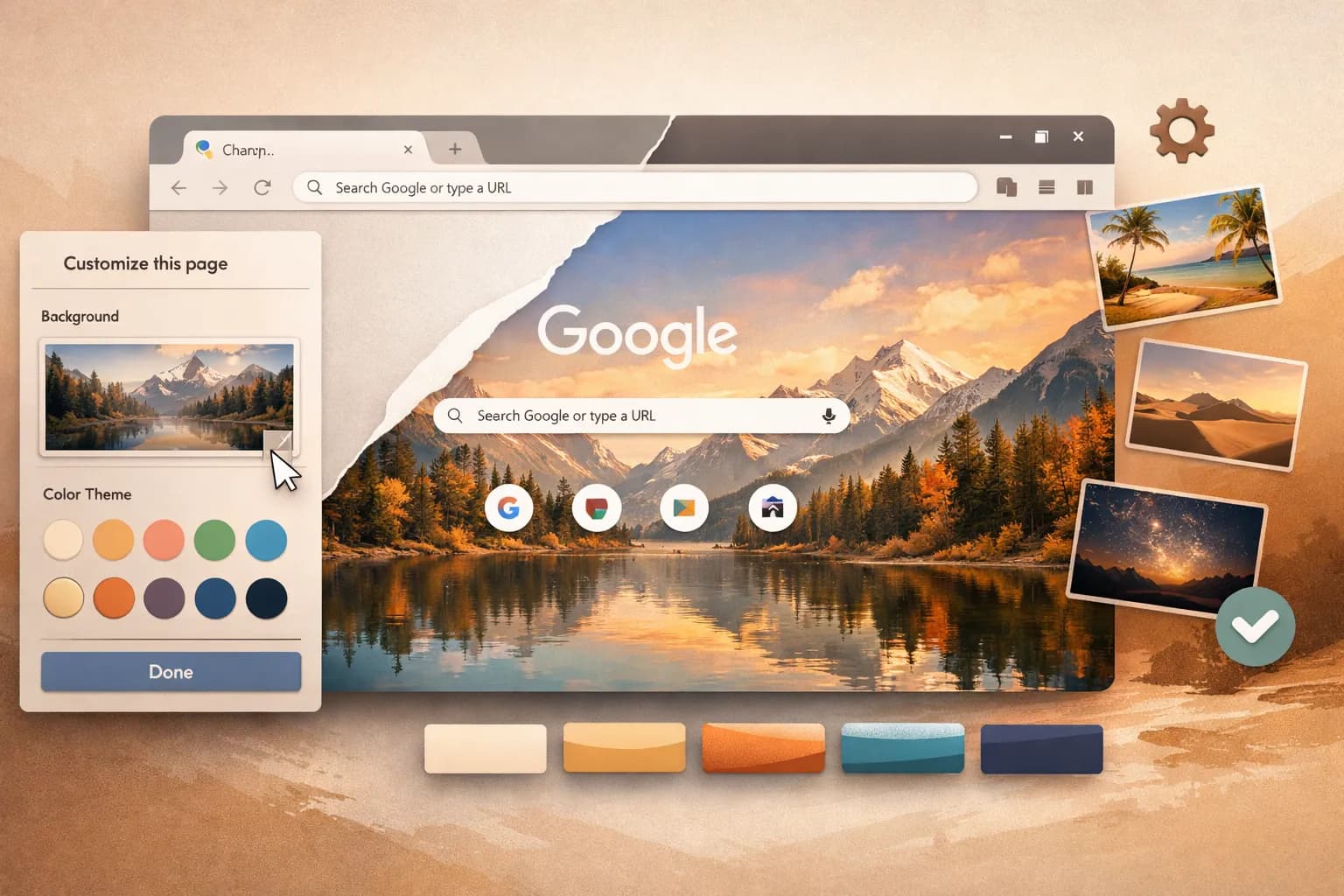
Want to replace Chrome's boring default new tab background with something beautiful? You have several options — from Chrome's built-in customization to powerful extensions that offer millions of high-quality wallpapers.
This guide covers every method to change your Chrome new tab background.
Quick Overview
| Method | Wallpaper Options | Difficulty | Best For |
|---|---|---|---|
| Chrome Built-in | Limited | Easy | Basic users |
| Dream Afar | Millions | Easy | Most users |
| Custom Upload | Your photos | Easy | Personal touch |
| Other Extensions | Varies | Easy | Specific needs |
Method 1: Chrome's Built-in Background Options
Chrome includes basic background customization without installing anything.
Step-by-Step Instructions
- Open a new tab in Chrome (
Ctrl/Cmd + T) - Click "Customize Chrome" in the bottom-right corner
- Select "Background" from the menu
- Choose your background:
- Chrome wallpapers: Curated collections (landscapes, abstract, etc.)
- Upload from device: Use your own image
- Solid colors: Simple color backgrounds
Chrome's Wallpaper Collections
Chrome offers several curated collections:
- Earth — Nature and landscape photography
- Art — Abstract and artistic images
- Cityscapes — Urban photography
- Seascapes — Ocean and water themes
Setting Refresh Frequency
- After selecting a collection, look for "Refresh daily" toggle
- Enable it to get a new wallpaper each day
- Disable for a static background
Limitations of Chrome's Built-in Options
- Limited selection — Only a few hundred images
- No Unsplash access — Missing millions of high-quality photos
- Basic customization — No overlay, blur, or brightness controls
- No widgets — Just the background, nothing else
- No productivity features — No todos, timers, or notes
Method 2: Using Dream Afar (Recommended)
For access to millions of wallpapers plus productivity features, Dream Afar is the best free option.
Installing Dream Afar
- Visit the Chrome Web Store
- Click "Add to Chrome"
- Confirm the installation
- Open a new tab — Dream Afar is now active
Choosing a Wallpaper Source
Dream Afar offers multiple high-quality sources:
Unsplash Collections
Unsplash hosts millions of professional photos, organized into collections:
- Nature & Landscapes — Mountains, forests, lakes, waterfalls
- Architecture — Buildings, interiors, urban design
- Abstract — Patterns, textures, artistic images
- Travel — Destinations from around the world
- Minimalist — Clean, simple compositions
- Animals — Wildlife and pets
- Space — Galaxies, planets, astronomical images
To select an Unsplash collection:
- Click the settings icon (gear) on your new tab
- Navigate to "Wallpaper"
- Select "Unsplash" as source
- Choose your preferred collection
Google Earth View
Stunning satellite imagery showing Earth from above:
- Unique perspectives of landscapes
- Patterns created by nature and humans
- Updated regularly with new imagery
- Great for geography enthusiasts
To enable Google Earth View:
- Open settings → "Wallpaper"
- Select "Google Earth View"
- Wallpapers automatically rotate
Custom Photos
Use your own images as wallpapers:
- Open settings → "Wallpaper"
- Select "Custom"
- Click "Upload" or drag images
- Supported formats: JPG, PNG, WebP
Configuring Refresh Settings
Control how often your wallpaper changes:
| Setting | Description |
|---|---|
| Every new tab | Fresh wallpaper with each tab |
| Every hour | Changes once per hour |
| Daily | New wallpaper each day |
| Never | Static background |
To change:
- Settings → "Wallpaper"
- Find "Refresh" option
- Select your preference
Advanced Wallpaper Settings
Dream Afar offers additional customization:
Blur Effect
- Soften the background for better text readability
- Adjustable blur intensity
Brightness/Dimming
- Darken wallpapers for better contrast
- Helps widgets stand out
Overlay Colors
- Add color tint to wallpapers
- Create consistent visual themes
Method 3: Using Your Own Photos
Both Chrome and extensions support custom photo uploads.
Preparing Your Photos
For best results:
Resolution
- Minimum: 1920x1080 (Full HD)
- Recommended: 2560x1440 (2K) or higher
- Ideal: Match your monitor resolution
Aspect Ratio
- Standard: 16:9 for most monitors
- Ultrawide: 21:9 for ultrawide displays
- The image will be cropped/scaled to fit
File Format
- JPG — Best for photos, smaller file size
- PNG — Lossless quality, larger files
- WebP — Best compression, modern format
File Size
- Keep under 5MB for fast loading
- Compress large images using tools like TinyPNG
Uploading Custom Photos
Via Chrome Built-in:
- New tab → "Customize Chrome"
- "Background" → "Upload from device"
- Select your image
- Only one image at a time
Via Dream Afar:
- Settings → "Wallpaper" → "Custom"
- Upload multiple images
- Creates a slideshow rotation
- Set refresh frequency
Creating Photo Slideshows
With Dream Afar, create rotating slideshows:
- Upload multiple photos to Custom wallpapers
- Set refresh to "Every new tab" or "Daily"
- Your photos will rotate automatically
Ideas for slideshows:
- Family photos
- Vacation memories
- Pet pictures
- Artwork you've created
- Screenshots from games/movies
Method 4: Other Extensions
Momentum
- Curated nature photography
- Daily rotating wallpapers
- Premium unlocks more collections ($5/month)
Tabliss
- Open source
- Unsplash integration
- Multiple wallpaper sources
Bonjourr
- Minimal design
- Dynamic gradients
- Nature photography
Troubleshooting Background Issues
Wallpaper Not Showing
Check extension is enabled:
- Go to
chrome://extensions - Find your new tab extension
- Ensure toggle is ON
Check for conflicts:
- Only one new tab extension can be active
- Disable others in
chrome://extensions
Wallpaper Loading Slowly
Causes and fixes:
| Issue | Solution |
|---|---|
| Slow internet | Wait or use cached images |
| Large image file | Use lower resolution |
| VPN blocking CDN | Temporarily disable VPN |
| Extension cache full | Clear cache in settings |
Image Quality Issues
Blurry wallpapers:
- Source image too small
- Choose higher resolution images
- Enable HD/4K option if available
Pixelated edges:
- Image being stretched
- Use images matching your resolution
- Try a different aspect ratio
Custom Upload Failures
Image not uploading:
- Check file size (under 5MB)
- Use supported format (JPG, PNG, WebP)
- Try a different image
- Clear browser cache and retry
Tips for Choosing Great Wallpapers
Match Your Mood
For focus work:
- Calm, minimal images
- Nature scenes (forests, mountains)
- Soft colors (blues, greens)
- Avoid busy patterns
For creative work:
- Vibrant, inspiring images
- Architecture and cities
- Abstract art
- Bold colors
For relaxation:
- Beaches and sunsets
- Soft gradients
- Peaceful landscapes
Consider Text Readability
- Widgets and text overlay wallpapers
- Dark wallpapers = light text (usually better contrast)
- Busy wallpapers = harder to read
- Use blur/dim settings for busy images
Rotate Collections
Prevent visual fatigue:
- Change collections weekly/monthly
- Mix different themes
- Try Google Earth View for variety
- Seasonal rotation (nature in spring, cozy in winter)
Quick Reference: Keyboard Shortcuts
| Action | Shortcut |
|---|---|
| Open new tab | Ctrl/Cmd + T |
| Refresh wallpaper | Extension-specific (check settings) |
| Open extension settings | Click gear icon |
| Save wallpaper | Right-click → Save image |
Related Articles
- The Ultimate Guide to Chrome New Tab Customization
- Best Free New Tab Extensions for Chrome 2025
- Chrome New Tab Widgets Explained
Ready for beautiful wallpapers? Install Dream Afar free →
Try Dream Afar Today
Transform your new tab into a beautiful, productive dashboard with stunning wallpapers and customizable widgets.