How to Customize Your Chrome New Tab Page for Maximum Productivity
Learn how to customize your Chrome new tab page with wallpapers, widgets, and productivity tools. Step-by-step guide to creating the perfect new tab experience.
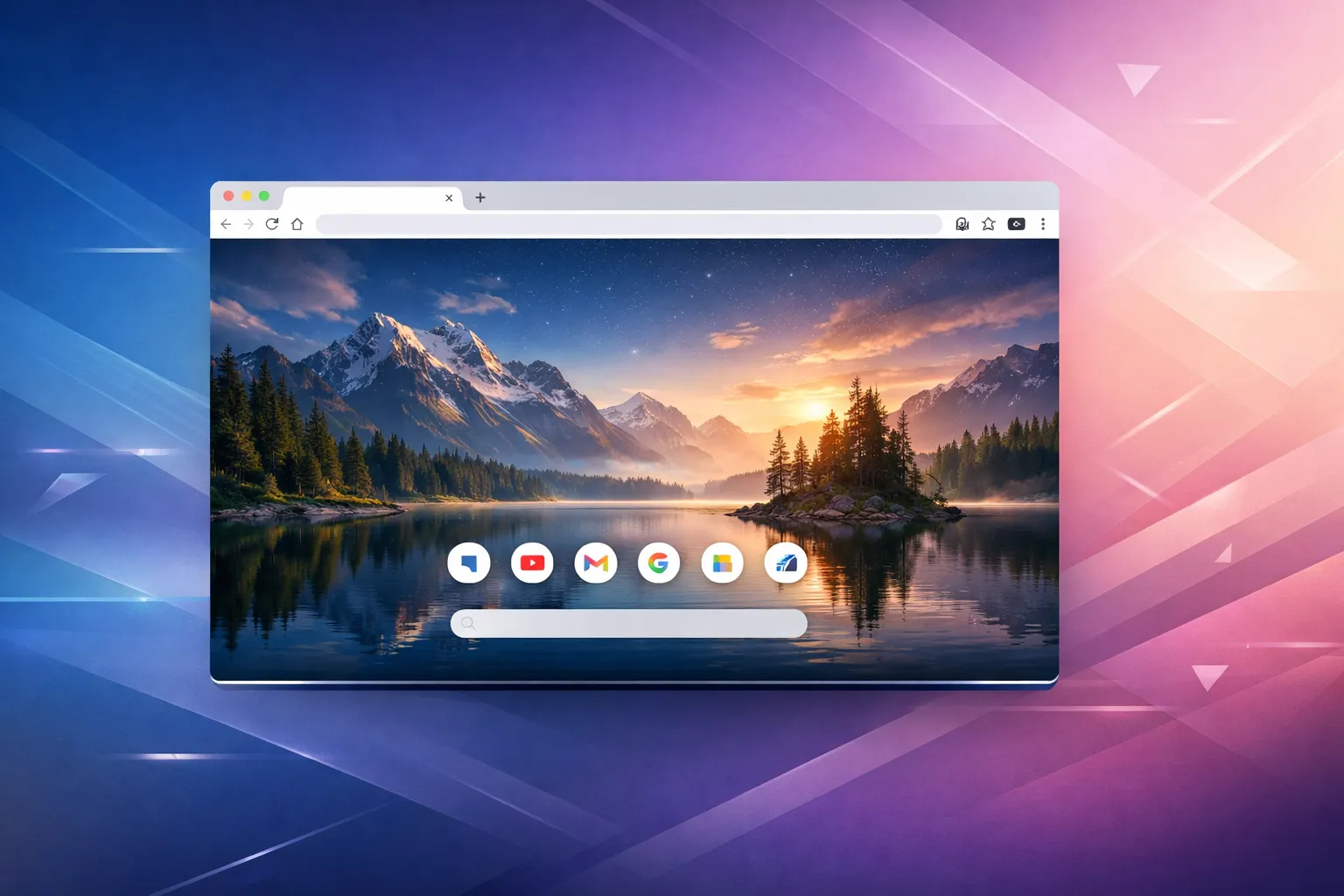
Chrome's default new tab page is functional but uninspiring — a search bar, some shortcuts, and that's about it. But with the right customization, your new tab can become a productivity powerhouse and a source of daily inspiration.
In this guide, we'll show you how to transform your Chrome new tab page from boring to beautiful.
Why Customize Your New Tab Page?
You open new tabs dozens (or hundreds) of times a day. That's a lot of opportunities to:
- Get inspired by beautiful imagery
- Stay focused with productivity tools at your fingertips
- Save time with quick access to important information
- Reduce distractions with a clean, intentional design
Let's make those moments count.
Method 1: Using Chrome's Built-in Options
Chrome offers some basic customization options without any extensions.
Changing the Background
- Open a new tab in Chrome
- Click the "Customize Chrome" button (bottom right)
- Select "Background"
- Choose from Chrome's wallpaper collections or upload your own
Customizing Shortcuts
- On your new tab page, click "Customize Chrome"
- Select "Shortcuts"
- Choose between:
- Most visited sites (automatic)
- My shortcuts (manual)
- Add, remove, or rearrange shortcuts as needed
Limitations of Built-in Options
Chrome's native customization is limited:
- No widgets (weather, todos, etc.)
- Limited wallpaper options
- No productivity features
- Can't add notes or timers
For more powerful customization, you'll need an extension.
Method 2: Using Dream Afar (Recommended)
Dream Afar offers the most comprehensive free customization for your new tab page. Here's how to set it up:
Step 1: Install Dream Afar
- Visit the Chrome Web Store
- Click "Add to Chrome"
- Confirm the installation
- Open a new tab to see Dream Afar in action
Step 2: Choose Your Wallpaper Source
Dream Afar offers multiple wallpaper sources:
Unsplash Collections
- Nature and landscapes
- Architecture
- Abstract
- And more...
Google Earth View
- Stunning satellite imagery from around the world
- Updated regularly
Custom Photos
- Upload your own images
- Use photos from your computer
To change wallpaper settings:
- Click the settings icon (gear) on your new tab
- Navigate to "Wallpaper"
- Select your preferred source and collection
- Set refresh interval (every tab, hourly, daily)
Step 3: Add and Arrange Widgets
Dream Afar includes several widgets you can customize:
Time & Date
- 12 or 24-hour format
- Multiple date formats
- Timezone support
Weather
- Current conditions
- Temperature in C° or F°
- Location-based or manual
Todo List
- Add tasks
- Check off completed items
- Persistent storage
Quick Notes
- Jot down thoughts
- Persistent between sessions
Pomodoro Timer
- Focus sessions
- Break reminders
- Session tracking
Search Bar
- Google, DuckDuckGo, or other engines
- Quick access from new tab
To customize widgets:
- Click and drag widgets to reposition
- Click a widget to access its settings
- Toggle widgets on/off in the main settings
Step 4: Enable Focus Mode
Focus Mode helps you stay productive by:
- Blocking distracting websites
- Showing a motivational message
- Tracking focus time
To enable:
- Open settings
- Navigate to "Focus Mode"
- Add sites to block
- Start a focus session
Step 5: Personalize the Experience
Fine-tune your new tab with these options:
Appearance
- Light/dark mode
- Font customization
- Widget opacity
Behavior
- Default search engine
- Wallpaper refresh frequency
- Clock format
Method 3: Other Customization Extensions
While we recommend Dream Afar, here are other options:
Momentum
- Motivational quotes
- Clean design
- Premium features require subscription
Tabliss
- Open source
- Customizable widgets
- Good for developers
Infinity New Tab
- Grid-based layout
- App shortcuts
- Highly customizable
Pro Tips for Maximum Productivity
1. Keep It Clean
Don't overload your new tab with too many widgets. Choose 3-4 essential tools and remove the rest.
2. Use the Two-Minute Rule
Add a "Quick Wins" section to your todos for tasks that take less than two minutes. Knock them out when you open a new tab.
3. Rotate Wallpaper Collections
Change your wallpaper collection periodically to keep things fresh and prevent visual fatigue.
4. Set Daily Intentions
Use the notes widget to write your top 3 priorities each morning. Seeing them every time you open a tab keeps you focused.
5. Block Distractions
Use Focus Mode to block time-wasting sites during work hours. Even just blocking social media can dramatically improve productivity.
Troubleshooting Common Issues
New tab extension not showing
- Check that the extension is enabled in
chrome://extensions - Make sure no other new tab extensions are conflicting
- Try restarting Chrome
Wallpapers not loading
- Check your internet connection
- Try a different wallpaper source
- Clear the extension's cache in settings
Widgets not saving
- Make sure you're not in incognito mode
- Check that Chrome isn't blocking local storage
- Try reinstalling the extension
Conclusion
Customizing your Chrome new tab page is one of the simplest ways to improve your daily browsing experience. Whether you choose Chrome's built-in options or a powerful extension like Dream Afar, the key is creating a space that inspires and supports your productivity.
Start with the basics — a beautiful wallpaper and one or two essential widgets — and build from there. Your perfect new tab setup is just a few clicks away.
Ready to transform your new tab? Install Dream Afar free →
Try Dream Afar Today
Transform your new tab into a beautiful, productive dashboard with stunning wallpapers and customizable widgets.